Core principles
- Wire first: Use Ethernet for stationary gear (TV, PC, hubs, cameras via PoE) to reduce Wi-Fi load.
- Separate IoT: Dedicated 2.4 GHz SSID (and VLAN if supported) isolates cheap IoT from laptops/phones.
- Controller-managed Wi-Fi: Multiple access points managed as one network (same SSID) for roaming.
- Keep it simple: Avoid double-NAT and random ISP router settings that break discovery (mDNS).
Topology & gear
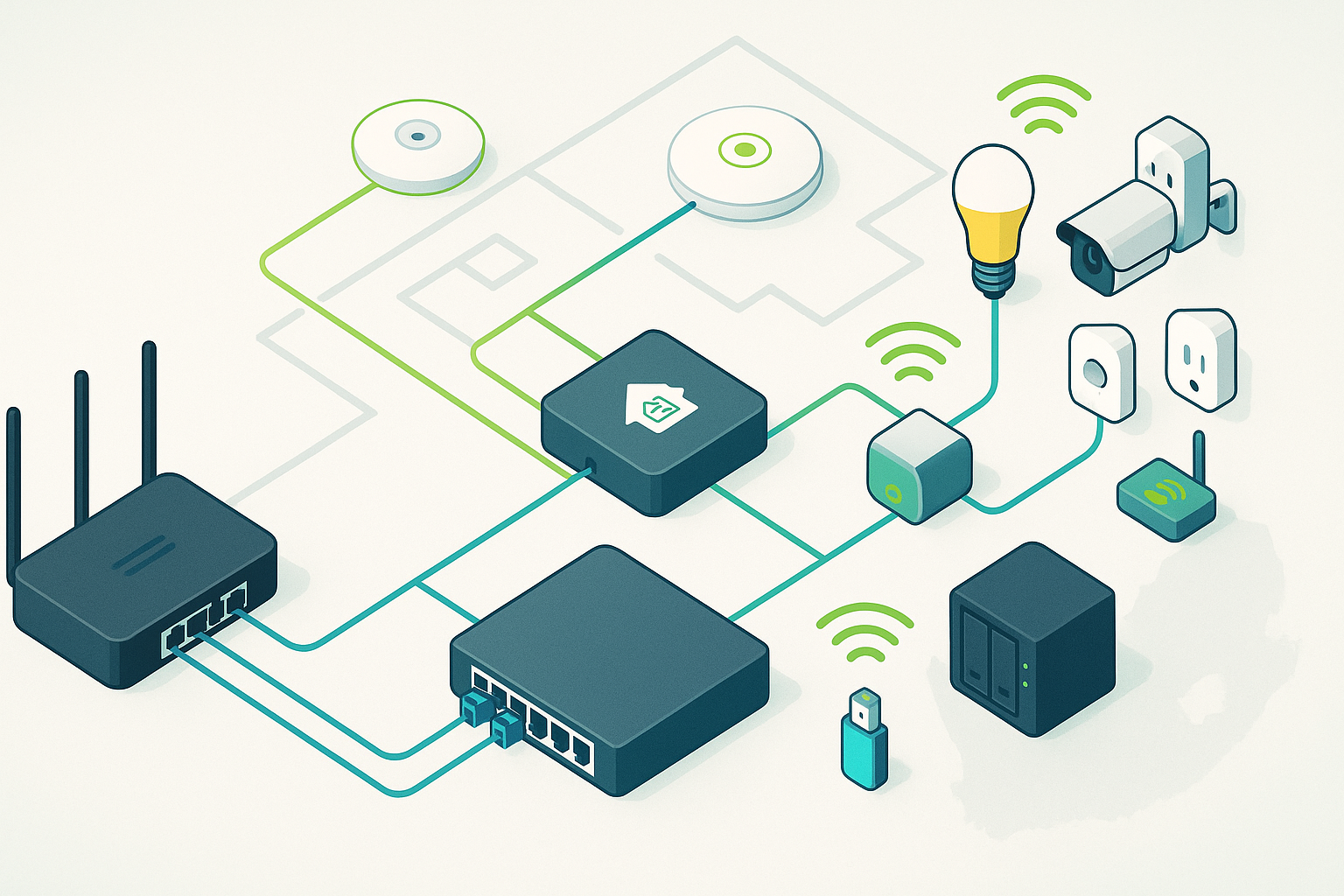
A clean layout looks like: ONT/Modem → Router/Firewall → (PoE) Switch → Access Points + Wired Devices. If you need cameras or Zigbee/Matter hubs, keep them close to the switch or APs.
- Router: Good throughput, VLAN support, stable firmware. Avoid ISP “all-in-one” if it can’t be bridged.
- Switch: PoE recommended (802.3af/at) to power APs and cameras from one UPS.
- Access Points: Ceiling/wall-mounted, one per ~80–120 m² and per floor; wire them back to the switch.
- Home Assistant host: Wire it. If Wi-Fi only, use 5 GHz and keep it near an AP.
Wi-Fi design for smart homes
- Bands: IoT on 2.4 GHz; heavy clients on 5 GHz/6 GHz. Disable “band steering” for the IoT SSID.
- Channels: Stick to 1/6/11 on 2.4 GHz. Set low-to-moderate transmit power to reduce overlap.
- SSIDs: Main, Guest, and IoT (2.4 GHz only). Keep SSIDs per band minimal to reduce airtime waste.
- Multicast/mDNS: Ensure mDNS (Bonjour) between main and IoT if you need discovery (e.g., HomeKit). Many routers have an “IoT isolation” toggle—allow controller-to-device where required.
Segmentation & security
Least privilege: your phone/HA controller may talk to IoT; IoT shouldn’t talk to the rest of your LAN or the Internet unless needed.
- IoT VLAN/SSID: Block lateral traffic; allow outbound only for time/firmware (NTP/HTTPS) as needed.
- Firewall rules: Permit LAN → IoT (controller to devices) but block IoT → LAN.
- UPnP: Disable for IoT. Prefer manual port-forwards only where essential.
- WPA2/WPA3: WPA2-PSK for legacy IoT; WPA3 (or mixed) for main SSID.
Power & UPS during load-shedding
Keep the following on a small UPS (or your inverter essential circuit): router, switch, access points, HA hub, ONT. A 300–600 W UPS or DC-UPS can run core networking for hours.
Example layouts
| Home | What to deploy | Notes |
|---|---|---|
| Small flat | 1 router + 1 AP (or router/AP combo), 5 GHz main + 2.4 GHz IoT SSIDs | Wire TV/HA if possible. Place AP centrally, away from metal. |
| 3-bed single-storey | Router + PoE switch + 2 APs; IoT VLAN/SSID; cameras via PoE | One AP near bedrooms, one near lounge. UPS for router/switch/APs. |
| Double-storey / large home | Router + PoE switch + 3–4 APs (one per floor wing), Ethernet backhaul | Avoid pure mesh if walls are dense; wire APs for best stability. |
Troubleshooting checklist
- Are IoT SSID and password simple (no special chars some chips hate)? 2.4 GHz only?
- Is the controller (Home Assistant/phone) allowed to reach the IoT subnet (mDNS/UDP 5353)?
- Do APs use channels 1/6/11 on 2.4 GHz with sensible TX power?
- Any double-NAT? Put ISP modem in bridge mode or use DMZ to your router.
- Are APs wired (backhaul) and placed away from fridges/metal/DB boards?
- On load-shedding, do router/switch/APs stay up on a UPS?
FAQ
Do I need VLANs?
Helpful, not mandatory. Start with a separate IoT SSID; add VLANs when your router/APs support it easily.
Is mesh Wi-Fi okay?
It works, but wired backhaul beats wireless mesh for latency and reliability—important for automation.
Which band for smart bulbs and plugs?
2.4 GHz. Keep the SSID name/password simple (no spaces or special characters if devices struggle).
What about Zigbee/Matter/Thread?
These use separate radios. Place the hub centrally and away from Wi-Fi APs if interference occurs; wire the hub if possible.
This guide is informational. Follow manufacturer instructions and local regulations. Consider a pro site survey for best AP placement.